Organization structure
The Organization structure tab (labeled Structure in the app) helps you define and configure your enterprise organizational breakdown: teams, RBS codes, and team managers. It gives you clear accountability and visibility across the organization and defines who can see and control what in the rest of the application (scoped access for team and project managers). Reorganizing teams is done by drag-and-drop; there are no separate modal dialogs — you edit names, RBS codes, and managers directly in the table.
Rates, calendar assignments, and availability are not managed here; they are configured in the Team Management tab.
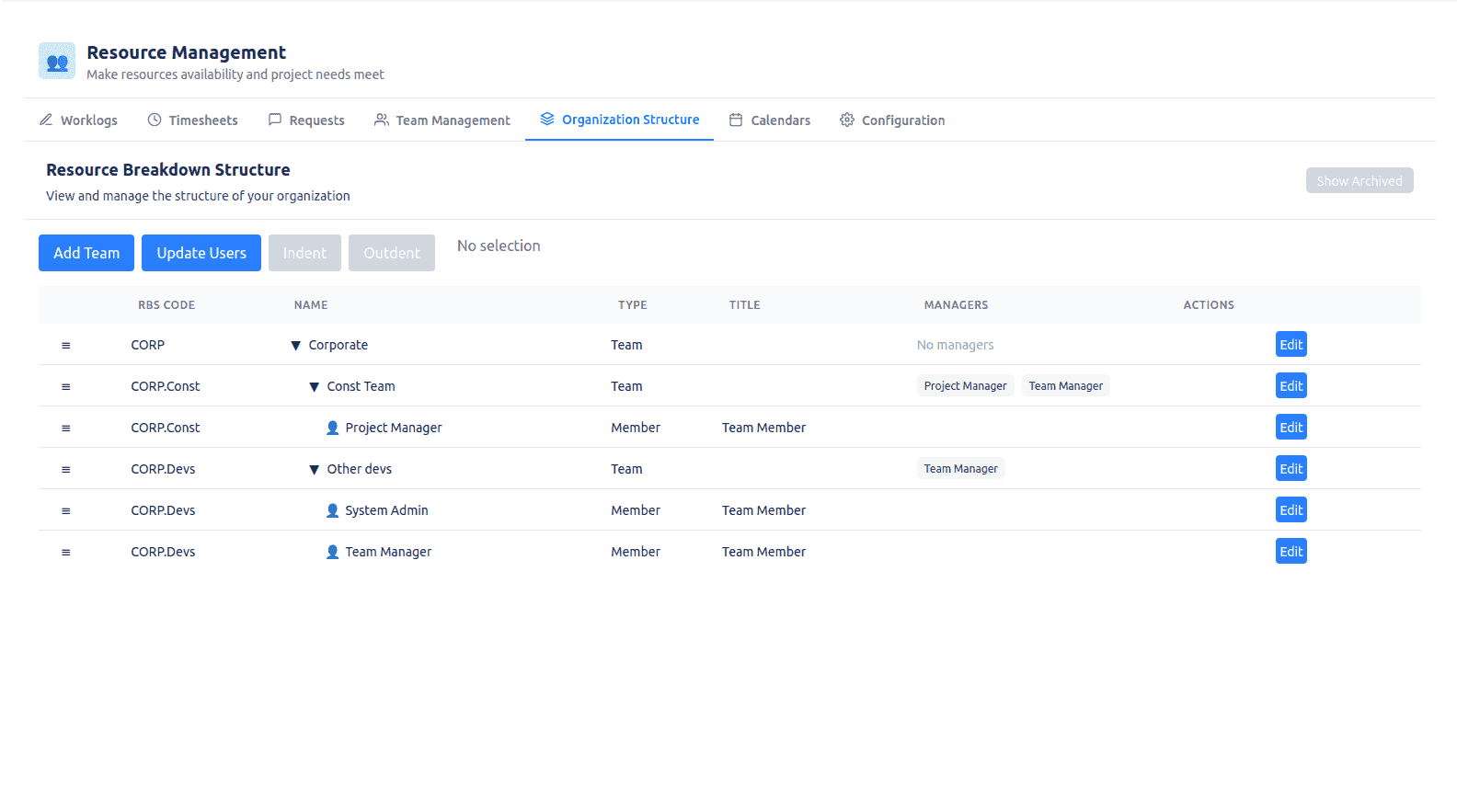
Who can view and edit
| Role | Can open the tab? | Can edit? |
|---|---|---|
| Instance Admin | ✅ | ✅ |
| Resource Management for Jira App Admin (delegated admin) | ✅ | ✅ |
| Team Manager | ✅ | Read-only |
| Project Manager | ✅ | Read-only |
| Requester | ❌ | — |
| Viewer | ❌ | — |
Only Instance Admins and Resource Management for Jira App Admins can add, edit, reorder, or archive teams and members. Team Managers and Project Managers can open the tab and view the full structure but cannot change it. Requesters do not get the Structure tab (limited demand role — see Access Control & Governance Roles).
Enterprise Ownership (Directory Sync)
For organizations that maintain their team hierarchy and membership in an external corporate directory (e.g., Microsoft Active Directory), Resource Management supports Directory Sync.
The system can be configured to auto-synchronize data from these external sources via a secured REST API. When this external sync is enabled in the application settings:
- The Organization Structure tab becomes read-only for all users, including Admins; it only displays the synchronized data.
- The team tree, RBS codes, and member assignments are updated automatically via the API sync process.
- This ensures that the organizational "Single Source of Truth" remains in the corporate directory, preventing local structure changes from diverging from the official company org chart.
Controls and layout
Header
- Title: “Resource Breakdown Structure”
- Subtitle: “View and manage the structure of your organization”
- Show Archived / Hide Archived (top right): Switch between including or hiding archived teams and members. Only visible for admins. When hidden, archived rows do not appear in the tree.
Toolbar (below header)
Visible only when you have edit permission. Buttons:
- Add Team — Creates a new top-level team (a unique RBS code is created for it). Disabled while a row is being edited.
- Update Users (Jira) / Add Member (BeOnTime) — Syncs or adds members from the platform. Disabled when no team is selected or while editing.
- Indent — Moves the selected row under the previous row (makes it a child of that node). Disabled if no row is selected or while editing.
- Outdent — Moves the selected row up one level (so it becomes a sibling of its current parent). Disabled if no row is selected or while editing.
- Selected row — Shows “Selected: <name>” for the current row, or “No selection” when none is selected.
Table (main area)
The table shows a single hierarchical tree of teams and members: teams can contain child teams and members. Use expand (▼) and collapse (▶) on team rows to show or hide children; members load when you expand a team for the first time.
- Row selection — Click a row to select it. Selection is required for Indent, Outdent, and for Add Member / Update Users (a team must be selected when adding or syncing members). The toolbar shows “Selected: <name>” or “No selection”.
- Drag handle — First column: drag a row to reorder or move it under another team. When you drop a row, the system automatically recalculates the RBS codes for the moved team and all its descendants to maintain a consistent hierarchical path.
- Name — Team or member name. In edit mode you can change the name in place.
- Type — “Team” or “Member”.
- Title — Job title for members; empty for teams.
- Managers — For teams only: list of manager names. In edit mode you can add managers via “Add manager…” (search) and remove them with × on each name.
- RBS code — Shown in the table; for teams you can edit it in edit mode (letters, numbers, and underscores only; must be unique in the hierarchy).
- Actions (when you have edit permission):
- Edit — Switches the row to edit mode so you can change name, RBS code (teams), and managers. You save or cancel from the same row.
- Save / Cancel — Shown in the Actions cell when a row is in edit mode. Save applies your changes; Cancel discards them.
- Archive / Restore — Archive the row so it is hidden by default, or restore it. Restore only applies when “Show Archived” is on.
There are no modal dialogs in this tab; all edits are done in the table with Save or Cancel per row.
Filters in this tab
The only way to narrow the view here is Show Archived / Hide Archived (admin-only). There are no text search or saved filters on the Organization structure tab.