Multi-Tier Calendars
One of the most common reasons project schedules fail is the "Generic Resource" fallacy—the assumption that every person is available 8 hours a day, 5 days a week, without exception.
MSP Planner solves this by implementing a Multi-Tier Calendar Model. This ensures that your schedule reflects the actual working time of your team.
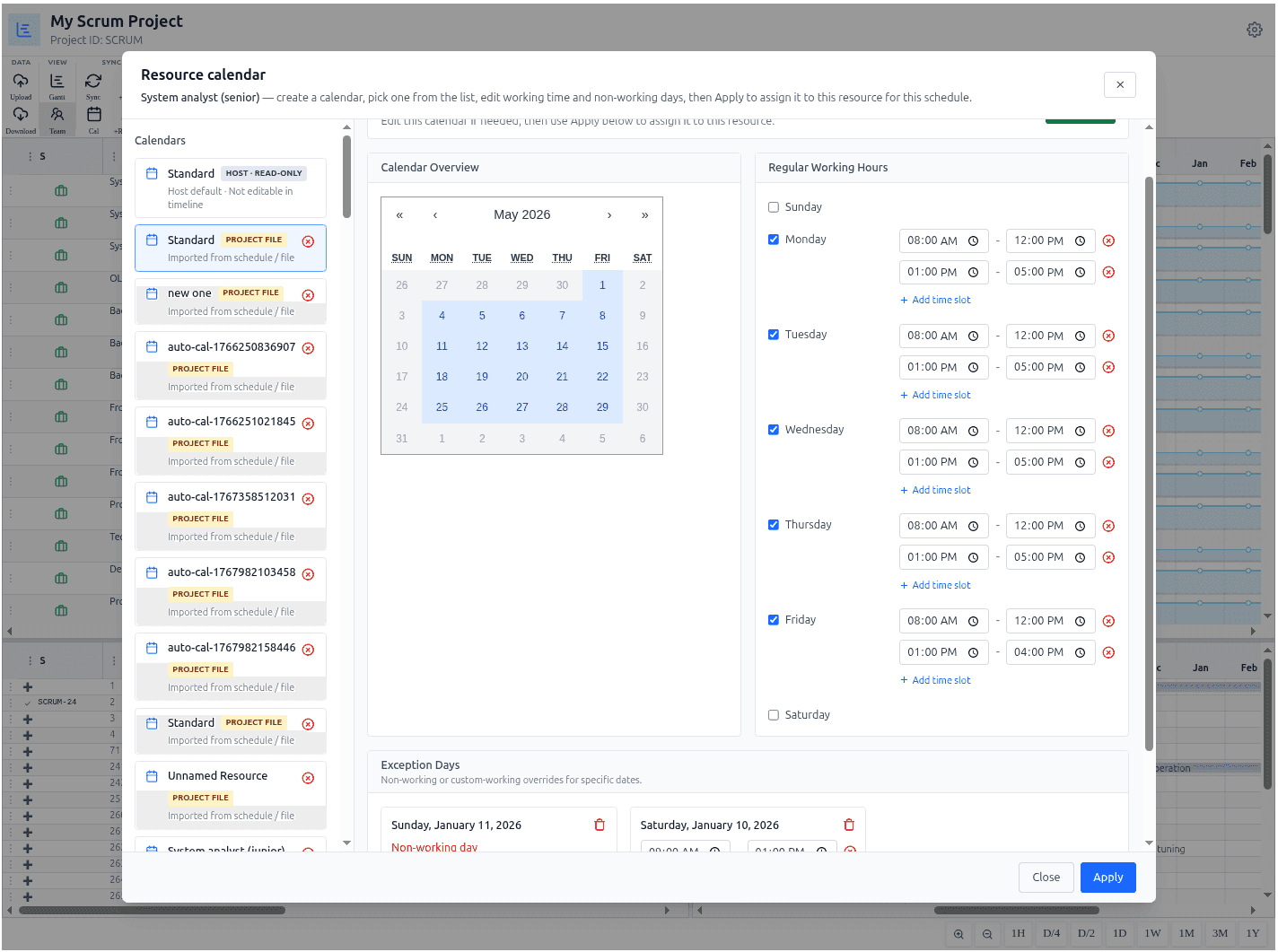
The Three Tiers of Time
The scheduling engine calculates availability by layering three different calendar levels:
1. The Project Calendar (Tier 1)
This is the global working time for the entire project. It defines the standard working days and hours for the project as a whole.
- Example: A project might be set to a "Standard 40-hour week" or a "Compressed 4-day week."
- Impact: All tasks in the project default to this calendar unless overridden.
2. The Resource Calendar (Tier 2)
Individual resources often have different working patterns than the project default.
- Example: A part-time consultant who only works Tuesdays and Thursdays, or a team member in a different time zone.
- Impact: The schedule automatically shifts task dates to align with the specific resource's availability.
3. Exception Days & Personal Availability (Tier 3)
The most granular level of planning accounts for specific dates where work cannot happen.
- Holidays: National or corporate holidays that apply to everyone.
- Personal Availability: Specific dates for vacations, sick leave, or training.
- Impact: If a resource is on vacation for a week, the scheduling engine automatically pushes their assigned tasks forward, alerting you to potential delays in the critical path.
Calendar Governance: Host vs. Schedule
To maintain enterprise consistency while allowing project flexibility, MSP Planner distinguishes between where a calendar is defined.
Corporate Base Calendars (Read-Only)
Standard organization calendars (e.g., "Global Corporate Standard") are provided by the host. These are read-only to ensure that the organization's official working hours remain consistent across all projects.
Schedule-Owned Forks (Project-Specific)
If you need to modify a corporate calendar for a specific project (e.g., adding a project-specific holiday), the app creates a Fork.
- Automatic Isolation: When you edit a corporate calendar, MSP Planner automatically creates a project-specific copy.
- Local Control: Your changes apply only to the current schedule and do not affect other projects or the corporate default.
Operational Guide: Managing Your Time
Setting the Project Default
- Open the Project Calendar Dialog.
- Select a base calendar from the catalog to be the global default for all tasks.
- Any task without a specific resource assignment will use this calendar to determine its duration and finish date.
Customizing Resource Availability
- Open the Resource Calendar Dialog for a specific person.
- Override Base Pattern: Change the weekly working hours if the resource has a non-standard schedule.
- Add Exception Days: Use the "Exception" tool to mark specific dates (vacations, training) as non-working. The scheduling engine will automatically shift all assigned tasks to account for these gaps.
The Capacity Impact
Calendar settings directly drive the Resource Histogram and the Critical Path:
- Available Hours: The "Capacity Line" in the resource view is calculated by multiplying the resource's Max Units by the available hours in their Multi-Tier Calendar.
- Predictive Slippage: If you add a two-week vacation to a resource on the critical path, the project finish date will realistically shift in real-time.
- Factual Capacity: By modeling real working time, you eliminate "optimism bias" and can present stakeholders with a delivery date based on factual availability.